How to upload files into collections
Introduction
This guide explains how to upload and transform documents into your PhariaSearch collections. You'll learn two approaches:
- Using PhariaData API for automatic file transformation
- Direct text upload using PhariaSearch API, for pre-processed content
If you plan on making the collections available for usage in Assistant, you will need to follow method 1 and upload the files to PhariaData API.
Prerequisites
- Completed collection setup
- If following approach 1: PhariaData service deployed -
https://pharia-data-api.{ingressDomain} - PhariaSearch service deployed -
https://document-index.{ingressDomain}, for the verification step, and if following approach 2 - Sample documents (supported formats: PDF, DOCX, PPTX, HTML, TXT, Markdown)
- Valid authorization token
- Check the
EtlServiceUserservice user permission in your PhariaAI values.yaml file
Get your authorization token
To use the API, you need access to the PhariaStudio token. Follow these steps to retrieve it:
- Go to the PhariaStudio page and log in if necessary.
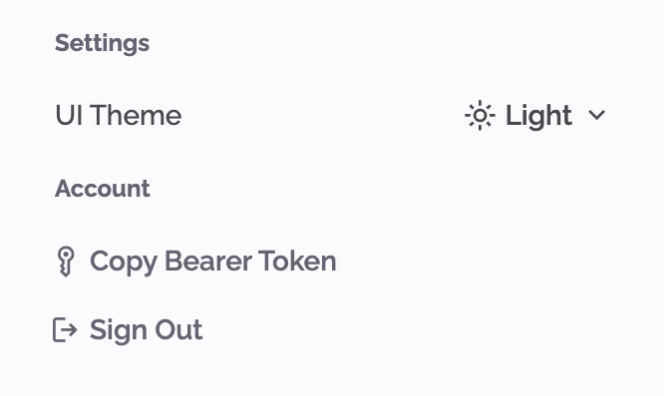
- In the upper-right corner, click on your profile.
- In the popup, click on Copy Bearer Token.
Upload methods
Method 1: Using PhariaData API
For automatic file transformation, you'll work with three main concepts:
-
Stages: Entry points for data collection that:
- Serve as secure storage for source files
- Enable subsequent transformations
- Can trigger automatic processing
- Support various file formats (PDF, DOCX, HTML, PPTX, TXT, Markdown)
-
Repositories: Storage locations that:
- Hold transformed data objects
- Maintain datasets with consistent schemas
- Enable data consumption by other services
- Store the extracted text from your documents
-
Transformations: Processing pipelines that:
- Convert files from one format to another (e.g., PDF to text)
- Follow defined input/output schemas
- Can be triggered manually or automatically
- Connect with PhariaSearch collections
Here's how these components work together:
- Upload files to a Stage
- Transform files using specific transformations
- Store results in a Repository
- Index the content in your PhariaSearch collection
Follow these steps to implement this workflow:
1. Create a Stage
A Stage is where your source files are initially uploaded and processed:
curl -X POST \
  'https://pharia-data-api.{ingressDomain}/api/v1/stages' \
  -H 'Authorization: Bearer {your-token}' \
  -H 'Content-Type: application/json' \
  -d '{
  "name": "Stage - Example ingestion documents in a collection"
}'
2. Create a Repository
A Repository will store the transformed text extracted from your documents:
curl -X POST \
  'https://pharia-data-api.{ingressDomain}/api/v1/repositories' \
  -H 'Authorization: Bearer {your-token}' \
  -H 'Content-Type: application/json' \
  -d '{
  "name": "My Repository",
  "mediaType": "application/x-ndjson"
}'
3. Upload and Transform
First, upload your file to the Stage:
curl -X POST \
  'https://pharia-data-api.{ingressDomain}/api/v1/stages/{stage_id}/files' \
  -H 'Authorization: Bearer {your-token}' \
  -H 'Content-Type: multipart/form-data' \
  -H 'accept: application/json' \
  -F sourceData=@sample01.pdf \
  -F name=file.pdf
This creates a file entity in your Stage. The response includes:
fileId: Unique identifier for your filestageId: The Stage containing your filemediaType: The file's formatversion: Version tracking for updates
Then trigger the transformation:
curl -X POST \
  'https://pharia-data-api.{ingressDomain}/api/v1/transformations/{transformation_id}/runs' \
  -H 'Authorization: Bearer {your-token}' \
  -H 'Content-Type: application/json' \
  -d '{
  "input": {
    "type": "DataPlatform:Stage:File",
    "fileId": "<file_id>",
    "stageId": "<stage_id>"
  },
  "destination": {
    "type": "DataPlatform:Repository",
    "repositoryId": "<repository_id>"
  },
  "connector": {
    "type": "DocumentIndex:Collection",
    "collection": "<collection>",
    "namespace": "<namespace>"
  }
}'
The transformation process:
- Reads the file from your Stage
- Converts it to text using the specified transformation
- Stores the result in your Repository
- Indexes the content in your PhariaSearch collection
Keep in mind that for TXT and Markdown files, only UTF-8 encoding with LF as line feed character is supported at the moment.
Check Transformation Status
Monitor the transformation status:
curl -X POST \
  'https://pharia-data-api.{ingressDomain}/api/v1/transformations/{transformation_id}/runs/{run_id}' \
  -H 'Authorization: Bearer {your-token}' \
  -H 'Content-Type: application/json'
Method 2: Direct text upload
For pre-processed text content, use the collections endpoint:
curl -X PUT \
  'https://document-index.{ingressDomain}/collections/{namespace}/{collection}/docs/{name}' \
  -H 'Authorization: Bearer {your-token}' \
  -H 'Content-Type: application/json' \
  -d '{
    "schema_version": "V1",
    "contents": [
      {
        "modality": "text",
        "text": "{document-content}"
      }
    ],
    "metadata": [
      {
        "url": "https://example.com/external-uri"
      }
    ]
  }'
Automated Processing
You can automate document processing using triggers. A trigger:
- Watches for new files in a Stage
- Automatically starts transformations
- Routes results to specified destinations
- Reduces manual intervention
Set up a trigger when creating a Stage:
curl -X POST \
  'https://pharia-data-api.{ingressDomain}/api/v1/stages' \
  -H 'Authorization: Bearer {your-token}' \
  -H 'Content-Type: application/json' \
  -d '{
  "name": "My Stage",
  "triggers": [
    {
      "name": "PDFTriggerMyStage",
      "transformationName": "DocumentToText",
      "destinationType": "DataPlatform:Repository",
      "connectorType": "DocumentIndex:Collection"
    }
  ]
}'
Then upload with trigger context:
curl -X POST \
  'https://pharia-data-api.{ingressDomain}/api/v1/stages/{stage_id}/files' \
  -H 'Authorization: Bearer {your-token}' \
  -H 'Content-Type: multipart/form-data' \
  -H 'accept: application/json' \
  -F sourceData=@sample01.pdf \
  -F name=file.pdf \
  -F 'ingestionContext={
    "triggerName": "PDFTriggerMyStage",
    "destinationContext": {
        "repositoryId": "<repository_id>"
    },
    "connectorContext": {
        "collection": "<collection>",
        "namespace": "<namespace>"
    }
  }'
If the selected transformation accepts parameters, the following request is used:
curl -X POST \
  'https://pharia-data-api.{ingressDomain}/api/v1/stages/{stage_id}/files' \
  -H 'Authorization: Bearer {your-token}' \
  -H 'Content-Type: multipart/form-data' \
  -H 'accept: application/json' \
  -F sourceData=@sample01.pdf \
  -F name=file.pdf \
  -F 'ingestionContext={
    "triggerName": "PDFTriggerMyStage",
    "destinationContext": {
        "repositoryId": "<repository_id>"
    },
    "connectorContext": {
        "collection": "<collection>",
        "namespace": "<namespace>"
    },
    "transformationContext": {
      "parameters": {
        "param1": "value1"
      }
    }
  }'
This automated flow:
- Uploads your file
- Triggers the transformation automatically
- Stores results in the Repository
- Indexes content in your collection
Verification
Search your uploaded content:
curl -X POST \
  'https://document-index.{ingressDomain}/collections/{namespace}/{collection}/indexes/{index}/search' \
  -H 'Authorization: Bearer {your-token}' \
  -H 'Content-Type: application/json' \
  -d '{
  "query": [
    {
      "modality": "text",
      "text": "What a good example?"
    }
  ]
}'
Troubleshooting
Common upload issues:
File Processing Errors
-
Error: Unsupported file type
- Solution: Check supported formats in /transformations endpoint
-
Error: Transformation failed
- Solution: Verify transformation configuration for file size and other limits
Upload Size Limits
- Error: File too large
- Solution: Use chunked upload for files >1GB